Tools
Clean camera, location and AI data out of a picture without uploading it, or save a public YouTube video, with sound, as a single file.
Brand Content has two tools that work on files you already have instead of generating new ones. The Image anonymizer strips hidden data out of a picture, and the YouTube tool saves a public YouTube video as a file. Both sit under Brand Content > Tools.
Who sees which tool
Each tool follows the module it came from, so a brand can have one without the other.
| Tool | Shows when | Who can use it |
|---|---|---|
| Image anonymizer | The brand has the Image module on, and you have the view right on Content: Image | Anyone who can open the page, whatever their role. Nothing is sent to a server. |
| YouTube | The brand has the Video module on, and you have the view right on Content: Video | Editor role or above, with the create right on Content: Video |
The Tools entry in the left menu opens the anonymizer when you may use it, and the YouTube page otherwise. On the page, a switch at the top moves between the two. See capabilities and modules and roles and rights.
Can’t find Tools in the left menu? Then both tools are hidden for the active brand: its Image and Video modules are off, or you don’t have the view rights. Ask an admin. Brands are explained in brands.
Image anonymizer
The anonymizer shows you everything hidden inside a picture, then rebuilds it pixel by pixel into a new file that carries none of it. It’s handy before you share a photo straight off a phone, which can carry its GPS location, or a picture made with an AI tool.
Note: Nothing is uploaded and nothing is stored. The whole process runs in your browser, and the clean copy only exists on the page until you download it. It disappears when you leave the page.
Step by step
- Go to Brand Content > Tools > Image anonymizer.
- Choose the Output format: Auto (keep PNG/WebP, otherwise JPG), JPG, PNG or WebP.
- Drop a picture on the box, or click it to choose one. JPG, PNG, WebP and anything else your browser can open.
- Look over what it found, then click Download clean image.
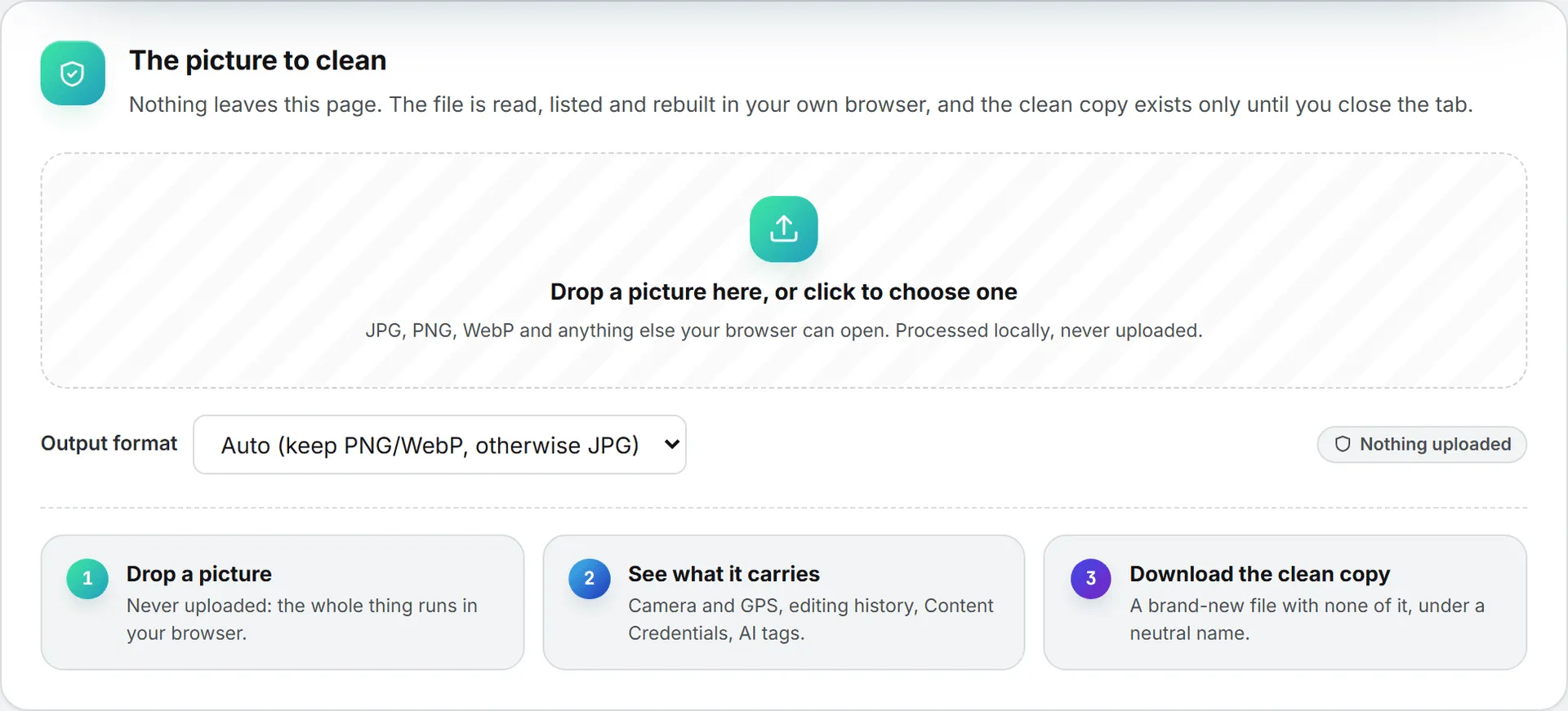
If you change the output format afterward, the same picture is cleaned again in the new format, without dropping it a second time. The tool takes one picture at a time.
What it finds
The first card, “Found in” followed by the file name, lists each block of hidden data. Each one is tagged metadata or AI provenance. Here’s what it looks for:
- EXIF data (camera, date, GPS, software)
- XMP metadata and IPTC / Photoshop metadata
- ICC color profiles
- Embedded comments and other application data blocks
- Text chunks inside PNG files, such as Stable Diffusion generation parameters or a ComfyUI prompt or workflow
- C2PA “Content Credentials”
- AI-generation markers left by tools such as Midjourney, DALL·E, OpenAI, Stable Diffusion, Adobe Firefly or Google Imagen, plus the IPTC “trained algorithmic media” tag and AIGC labels
A phone photo often shows several of these at once, which is normal. If nothing is found, the card says so. The clean copy is still fully rebuilt, so anything the scanner can’t read is dropped too.
The clean copy
The second card shows the new file: a neutral random name (for example image-3fa91c.jpg), its width and height, and its size next to the original’s. The width and height don’t change. A JPG or WebP copy is compressed again at high quality, so its size can differ a little from the original. The original file name is never reused, because a name like “ChatGPT Image” can itself give the source away.
The clean file is scanned again before you download it. You’ll see either “Verified: the clean file contains no metadata blocks and a neutral random filename”, or a warning that some blocks were still detected, with a suggestion to try another output format.
Tip: A JPG can’t be transparent. Clean a transparent picture into JPG and its transparent areas turn white; pick PNG or WebP to keep them. Auto keeps them too when the original is a PNG or WebP.
Limits and cost
The anonymizer removes everything written into the file. It doesn’t repaint the picture, so a watermark hidden in the pixels, visible or invisible, can survive. Only anonymize images you have the rights to use.
It’s free. The work happens in your browser, so no credits are used.
If the page says “This file could not be read as an image by your browser”, the file isn’t an image your browser can open. Convert it to JPG or PNG first.
Pictures made on the image generation page have the same cleaning built in: Download clean copy on a finished render does it in one click.
YouTube
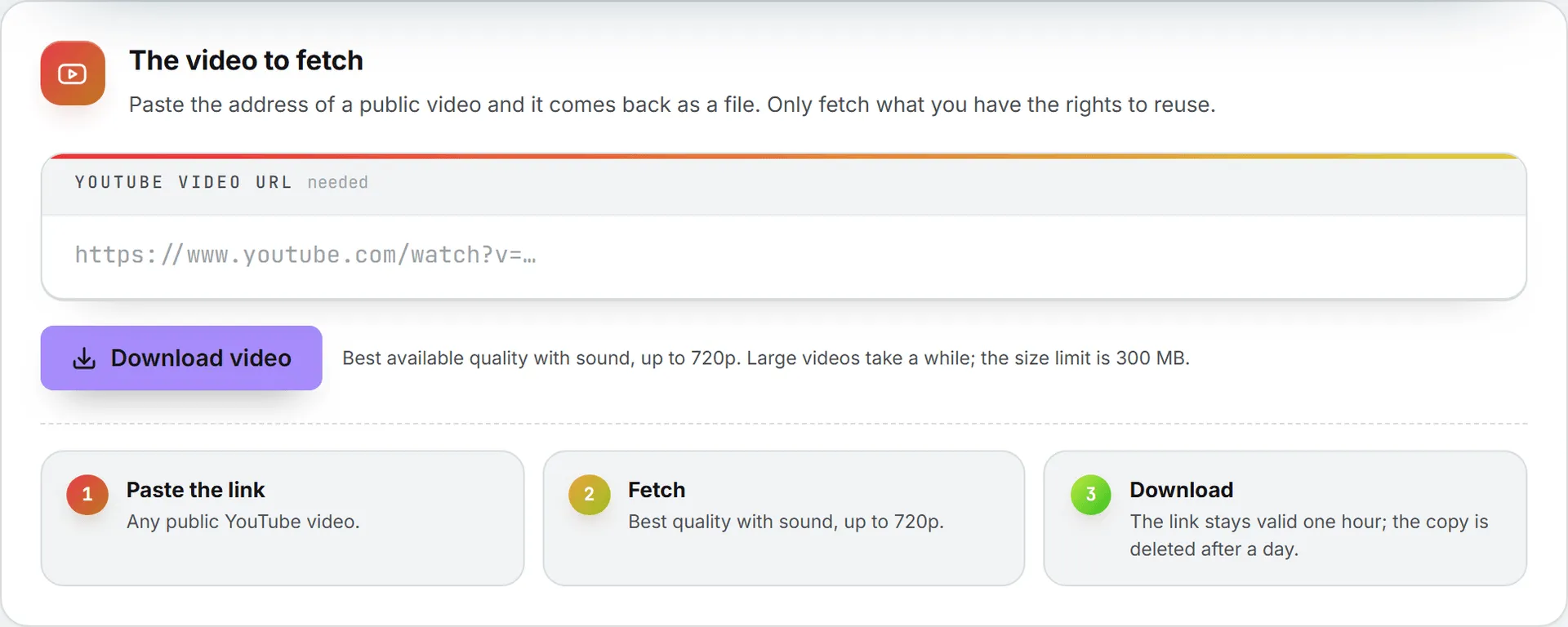
The second tool is simpler. Paste the link to a public YouTube video and this tool hands you the video as a file. You get picture and sound together, at the best quality YouTube offers up to 720p.
Step by step
- Go to Brand Content > Tools > YouTube.
- Paste the address into YouTube video URL, for example
https://www.youtube.com/watch?v=.... - Click Download video. Longer videos can take a moment.
- When the card appears, check the thumbnail, title, author, length and size, then click Save video. Your browser saves the file under the video’s title.
Limits and good to know
The download link is valid for one hour, and the copy kept on the server is deleted automatically after a day, so save the file when you ask for it. Videos over 300 MB are refused.
- The file isn’t added to the Assets Library. To use part of it as a reference clip in video generation, save it, trim it to the length the engine takes, and upload it from the video form.
- There’s no charge for a download.
- It fetches the video file only. There are no transcripts or captions.
Important: Only download videos you have the rights to reuse.
Troubleshooting
- “That does not look like a YouTube video URL.” Paste the full address of a single video, as your browser shows it.
- “Video is too large.” The video is over 300 MB. There’s no lower-quality option; pick a shorter video.
- “No downloadable format found for this video.” YouTube offers no file with sound and picture together for it.
- YouTube blocked the server. YouTube sometimes asks automated requests to prove they aren’t a bot. If you see this message, contact the BearingBridge team.
- “Your role (viewer) is read-only.” Downloading needs the editor role or above.