Ads performance report
Reporting mirrors your live Google Ads account per brand: sync it, read 30 days of results, pause or enable campaigns, change budgets and assign them.
The Reporting page shows what actually runs in your Google Ads account for the active brand, and what it delivers. It mirrors the live account, campaign by campaign, with the last 30 days of results. Editors can also pause a campaign, switch it back on or change its budget here, and Google Ads gets the change right away.
Where to find it
It’s Reporting, in the left column of Ads > Google Ads. The page shows the brand selected in the brand picker, and only the campaigns assigned to it.
The Campaigns watcher
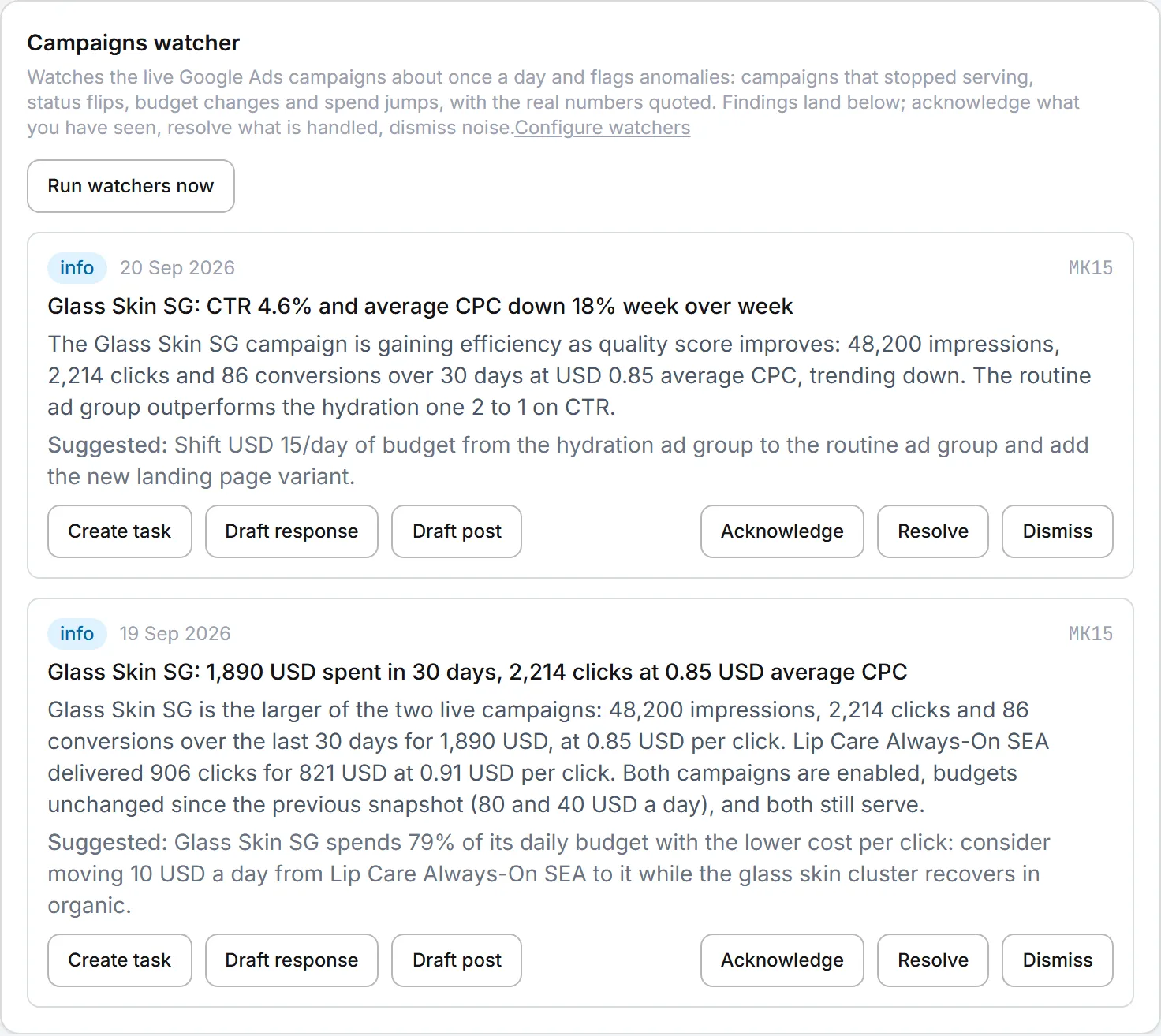
At the top sits the Campaigns watcher, an agent that looks at the brand’s live campaigns about once a day. It compares them with what it saw last time and flags anything odd, quoting the real numbers. Typical alerts: a campaign that stopped serving, a status or budget change, a jump in spend or in cost per click.
Each finding can be marked Acknowledge, Resolve or Dismiss. You can also turn one into a board task with Create task, or have AI draft an answer with Draft response or Draft post. Editors see Run watchers now to run it at once, and admins get a Configure watchers link. See agents and organization agents.
Sync the live account
The toolbar says how many live campaigns the brand has and when the account was last synced. Click ↻ Sync now to import the account again. A spinner runs while the account is read, then the page reloads with the fresh data.
A sync reads every campaign in your organization’s Google Ads account. For each one it brings back the status, the daily budget, the structure (ad groups, keywords, ads, negatives), the markets, the schedule and 30 days of performance. Campaigns you built in Intelligence are recognized and marked built here, and their status in the builder is updated to match Google Ads.
The first time you open the page, if nothing has been imported yet, the sync starts by itself. After that, there’s no automatic sync: the figures stay as they were at the last Sync now. The watcher reads those same synced figures, so sync before you rely on its alerts.
Reading a campaign card
Every campaign gets its own card, edged in the brand’s color.
The header gives the campaign name, its Google Ads status, a built here badge when it came from the builder, the number of ad groups and the daily budget. ENABLED means it can serve and PAUSED means it’s stopped. Campaigns deleted in Google Ads leave this page at the next sync.
Under it, an amber strip marked Restricted shows the targeting. Market lists the countries targeted, or warns all locations (no market set), which means the ads can show anywhere. Working hours summarizes the ad schedule in the Google Ads account’s time zone, or warns always on (no schedule).
The metrics row gives Impressions, Clicks, Cost (30d), Conv. and Avg CPC for the last 30 days, as a snapshot taken at the last sync. For fresher figures, open Campaign report · last 30 days, live. It’s read from Google Ads when you click it and holds a table By day and a table By keyword, each with impressions, clicks, CTR, average CPC, cost and conversions.
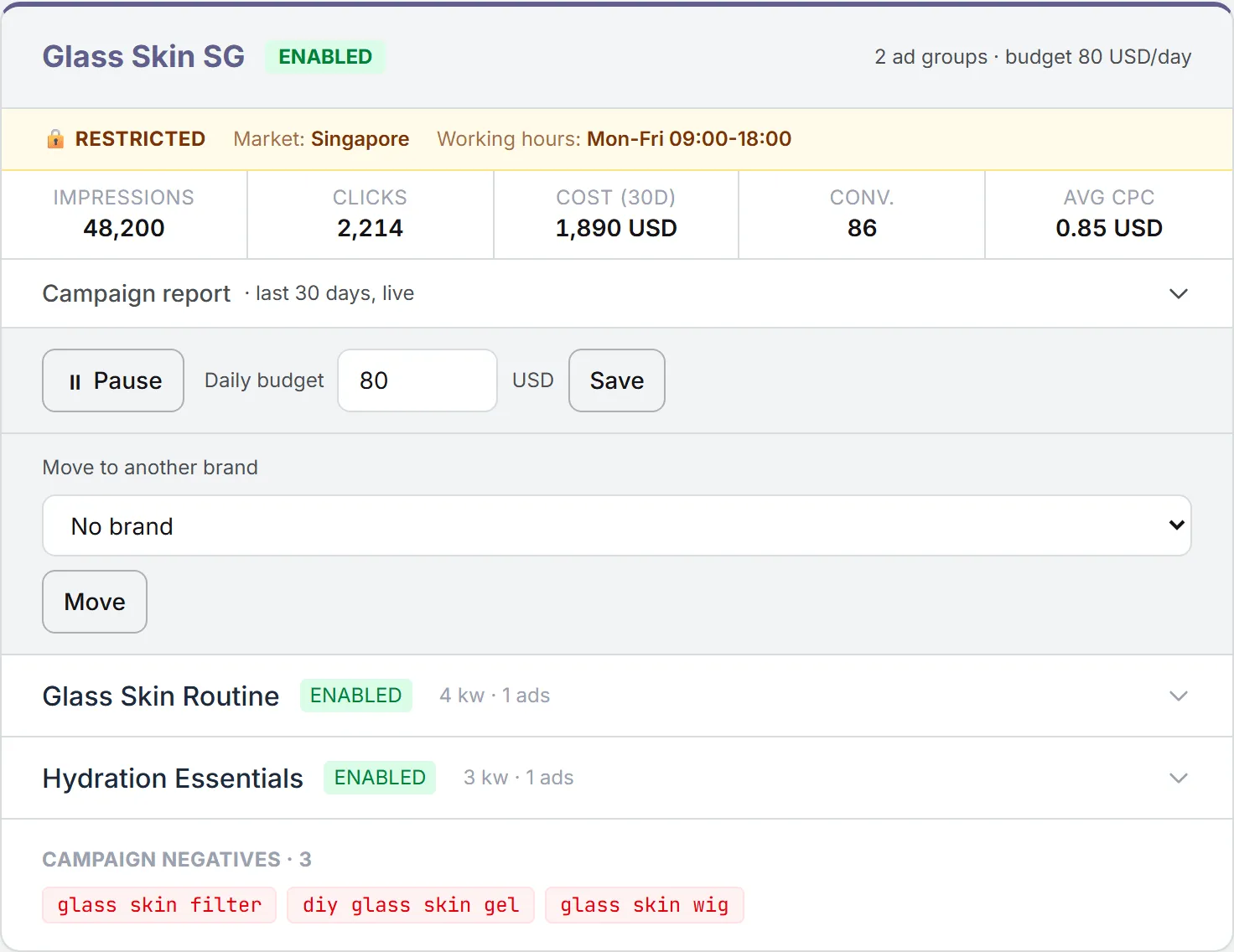
Lower down, click an ad group to open its keywords (with their match type) and its ads (headlines and descriptions). The campaign’s negative keywords close the card.
Amounts show in the Google Ads account’s currency. Dates and times follow your own date settings. See date and time settings.
What the numbers mean
Impressions is how often your ad was shown. Clicks is how many visits it produced. CTR is clicks divided by impressions. CPC is the average price of one visit. Conv. counts conversions, as tracked in your Google Ads account. If it stays at zero while clicks come in, check that conversion tracking is set up in Google Ads.
It helps to read it like a receipt: keywords that cost a lot and bring few clicks, or clicks that never convert, are the first to pause. The cheap ones that deliver might deserve more budget.
Pause, enable or change a budget
Most of this page is for reading, but you can change a few things from it as well.
Editors see a control row on each card:
- Click ⏸ Pause to stop a running campaign, with all its ad groups and ads, or ▶ Enable to start a paused one.
- To change the budget, type a new amount in Daily budget (at least 1) and click Save. The button turns amber while the amount is unsaved.
Both changes go to Google Ads first, and the card only changes once Google has accepted them. For a campaign built in Intelligence, the builder’s status and budget follow.
That’s all you can change here. Keywords, ads and targeting are edited in the campaign builder for campaigns built there, and in the Google Ads console for the rest.
Important: Enable switches on every ad group and ad in the campaign, including ones you paused one by one in the builder. To keep those off, use Resume in the campaign builder instead. See Google Ads campaigns.
Assign campaigns to brands
A Google Ads account belongs to the organization, and a sync can bring in campaigns that no brand owns yet, such as ones created in the Google Ads console.
Admins see them in a section called Imported from Google Ads · unassigned. Pick a brand for each one and click Assign. The campaign then shows on that brand’s Reporting page. You can only assign to brands you have access to.
On any campaign card, admins also get Move to another brand: pick the brand and click Move. Assigning and moving only change Intelligence; nothing changes in Google Ads.
This page versus the builder’s Reporting tab
The campaign builder has its own Reporting tab for each campaign built there. It reads the same last 30 days from Google Ads. This page goes wider: it shows every campaign in the account for the brand, including ones built in the Google Ads console, with their structure, targeting and the watcher.
Who can do this
| Action | Who |
|---|---|
| Open the page and the campaign reports | Anyone with access to Google Ads and the brand |
| Sync now, pause, enable, change a budget | Editor role or higher |
| Run watchers now | Editor role or higher |
| Assign or move campaigns between brands, see unassigned campaigns | Admin |
Brands are explained in brands, and roles in roles and rights.
What it costs
Syncing and the live campaign reports don’t use credits, however often you run them. The watcher is an AI agent, so each of its runs uses credits, whether it runs on its own or from Run watchers now. The drafts it offers on a finding are paid AI runs too. See agents and what costs credits.
Troubleshooting
- “No Google Ads account is configured for this brand’s organization.” The BearingBridge team links your organization’s Google Ads account. Contact them.
- “No Google Ads campaigns imported yet.” If a sync ran and nothing appears, the account has no campaigns yet.
- A campaign is missing. Click ↻ Sync now first. If it’s still missing, it may be unassigned or assigned to another brand: ask an admin to check the unassigned section.
- “Google Ads rejected the change.” Google refused the pause, enable or budget change. The message gives Google’s reason.
- “Google Ads read failed.” The sync couldn’t read the account. Try again later; if it persists, contact the BearingBridge team.